
The best keyword ideas are often searches you already appear for but don't win yet. Open the Performance report in Google Search Console, look at the Queries tab, and focus on queries with plenty of impressions but a low click-through rate, plus question-style searches you haven't written about.
Paid keyword research tools estimate what people search for. Google Search Console shows you the actual queries that put your pages in Google's results, with clicks and impressions for each. It's free, it's specific to your site, and it often surfaces long-tail keywords no tool lists. This guide walks through the Performance report step by step, using Google's own help pages. For the theory behind picking keywords, see our lesson on judging keyword metrics.
What does the Performance report show?
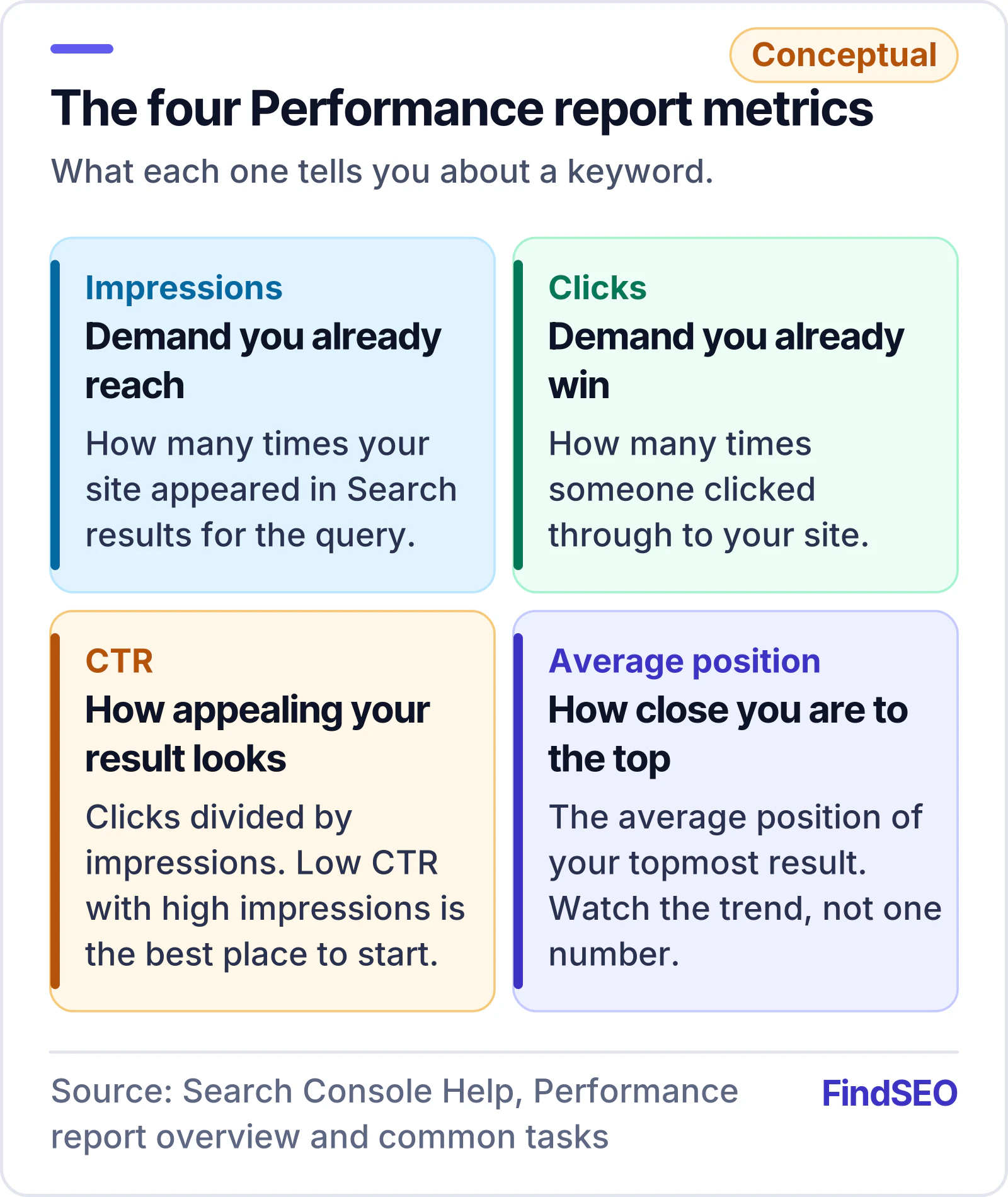
Google's Performance report overview says it shows how your site performs in Google Search results, including which queries bring traffic and which pages have the highest and lowest click-through rate. Four metrics matter for keyword work:
| Metric | What Google says it means | What it tells you about keywords |
|---|---|---|
| Impressions | How many times your site appeared in Search results | Demand you already reach |
| Clicks | How many times a user clicked through to your site | Demand you already win |
| CTR | Clicks divided by impressions | How appealing your result looks |
| Average position | The average position of your topmost result | How close you are to the top |
The report opens on the past three months of data for web search. You can change the date range and switch the search type to image, video or news.
How do you see every query your site appears for?
- Open Search Console and choose your property.
- Go to Performance, then Search results.
- Turn on all four metrics by clicking the Clicks, Impressions, CTR and Average position boxes above the chart.
- Open the Queries tab under the chart. Google's common tasks guide says to sort by clicks, CTR or impressions by clicking a column heading.
- Click any query to filter the whole report to it, then open the Pages tab to see which of your URLs Google showed.
Two limits are worth knowing. Google's dimensions guide says some queries are left out to protect user privacy (anonymised queries), and that Search Console shows only the most important rows, so the table won't list every query. The full list is only available through bulk data exports.
Which queries make the best keyword ideas?
Sort and filter the Queries tab to find these groups:
- High impressions, low CTR. Google's dimensions guide names this as a common use: queries with high impressions and low CTR are opportunities to improve your page title and description. Our guides on title tags and why Google rewrites titles help with the fix.
- Queries you rank for by accident. If a page appears for a search it only mentions in passing, that's a sign of demand for a dedicated page or section.
- Question searches. Queries starting with how, what, why or can often become FAQs, new sections or new articles.
- Local variations. Searches that add a suburb or city can justify location pages, if you really serve those areas.
- Non-branded searches. People who don't yet know your name. More on this below.
Before writing anything new, check the query against your existing pages. If two of your pages already appear for it, you may have keyword cannibalisation to fix rather than a new page to write.

How do you find keyword ideas for a page you already have?
Google's common tasks guide describes two checks that work page by page:
- Find your lowest-CTR pages. Select CTR as the metric above the chart, open the Pages tab and sort by CTR, lowest first. Google says a low CTR can mean people see your page in results but don't think it answers their query. Its suggested fix is to update the page's title and description, or adjust the content to better match the queries that show the page.
- See the searches behind one page. Add a page (URL) filter for the page you want to improve, then open the Queries tab. Any searches in that list that the page doesn't answer well are ideas for a new section, an FAQ or a separate article.
Google's dimensions guide adds that most data is credited to the page's canonical URL, so a click on a duplicate URL counts toward the canonical one. If a page seems to have no data, check which URL Google treats as canonical with the URL Inspection tool.
How do filters and regex help you find ideas faster?
Google's advanced filtering guide explains the options under + Add filter:
- Queries containing / not containing. Match or exclude one piece of text, such as a product name or a suburb. Google says the match isn't case-sensitive.
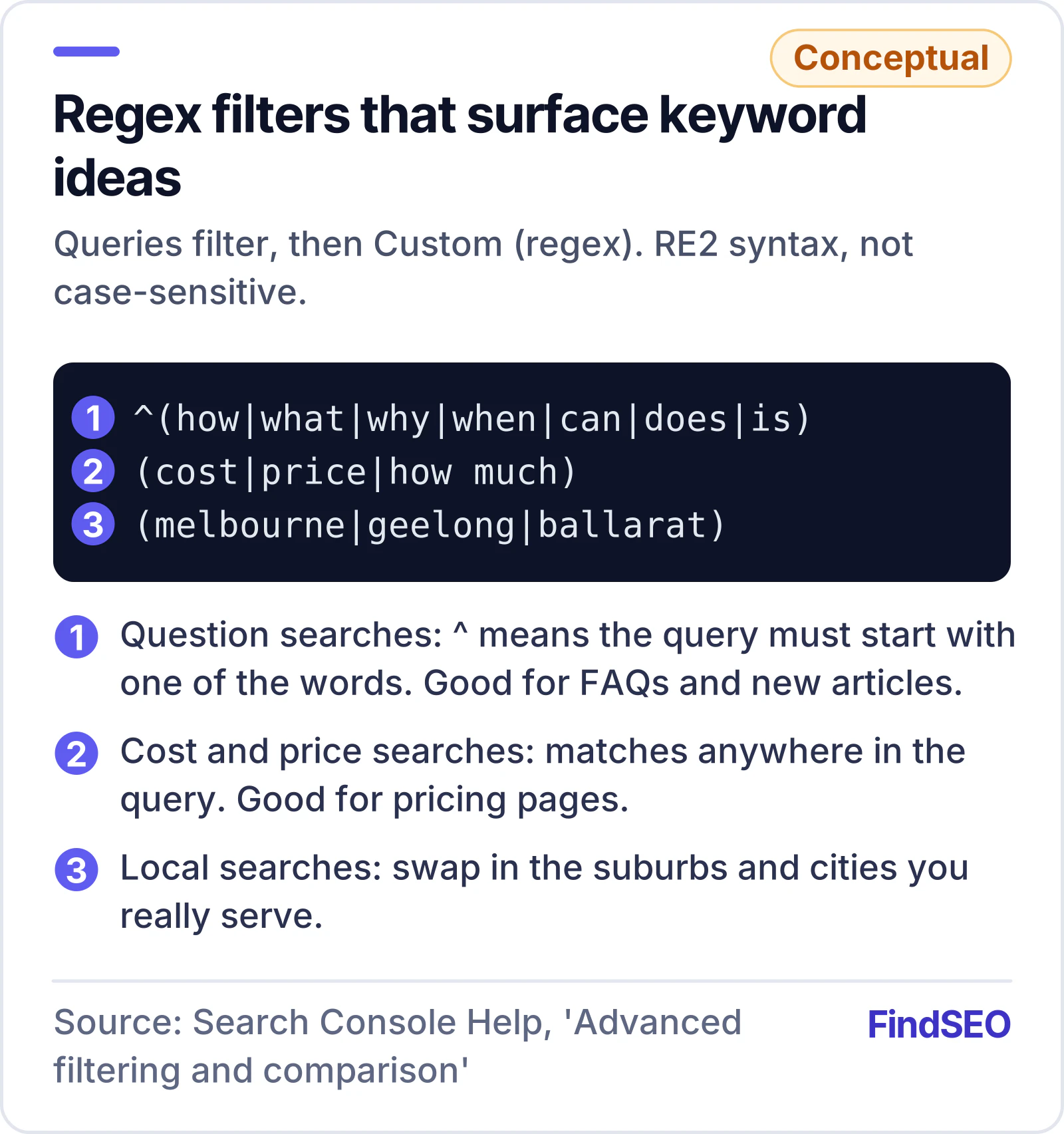
- Custom (regex). Match several patterns at once. Google uses RE2 syntax, matches anywhere in the query unless you use ^ or $, and separates options with a vertical bar.
- Several filters together, such as country and device, to narrow the data.
Some patterns to try (choose Queries, then Custom (regex)):
- Question searches: ^(how|what|why|when|can|does|is)
- Cost and price searches: (cost|price|how much)
- Local searches: (melbourne|geelong|ballarat)
- Australian searchers only: skip the regex and add a Country filter for Australia.
Swap in your own products, services and suburbs. Our lesson on search intent helps you decide whether each idea needs a guide, a service page or a product page.
How do you separate branded and non-branded searches?
Google's common tasks guide describes a branded and non-branded queries filter. Branded queries include your brand name, domain or brand-specific products, including misspellings. Non-branded queries don't. Google says branded traffic often comes from people who already know you, while non-branded traffic can show new audience growth, which is where most fresh keyword ideas live.
Google's dimensions guide adds that the filter isn't available for sites with few impressions, its history starts from when it was introduced in March 2025, and some queries may be classified wrongly. If you can't use it, a "Queries not containing" filter with your brand name does a similar job.
How do you spot rising and falling queries?
Use Compare in the date filter. Google says the table then adds a Difference column, and its common tasks guide suggests sorting by that column to find queries or pages with significant change. Google also suggests weekly or monthly granularity for date comparisons, to smooth out day-of-the-week effects.
Rising queries show growing demand you can build on. Falling ones may need a refresh; our guide on how often to update content covers when that's worth it. Google adds that you can only run one comparison at a time.
The same feature helps you judge whether a change worked. Google says it can be hard to tell if an edit caused an improvement, because news events, shifts in what people want or a competitor's better page can also move the numbers. Its advice is to check whether the improvement lines up in timing with your change, compared with similar periods in the past.
How should you read the numbers?
Google's About the data page explains a few quirks:
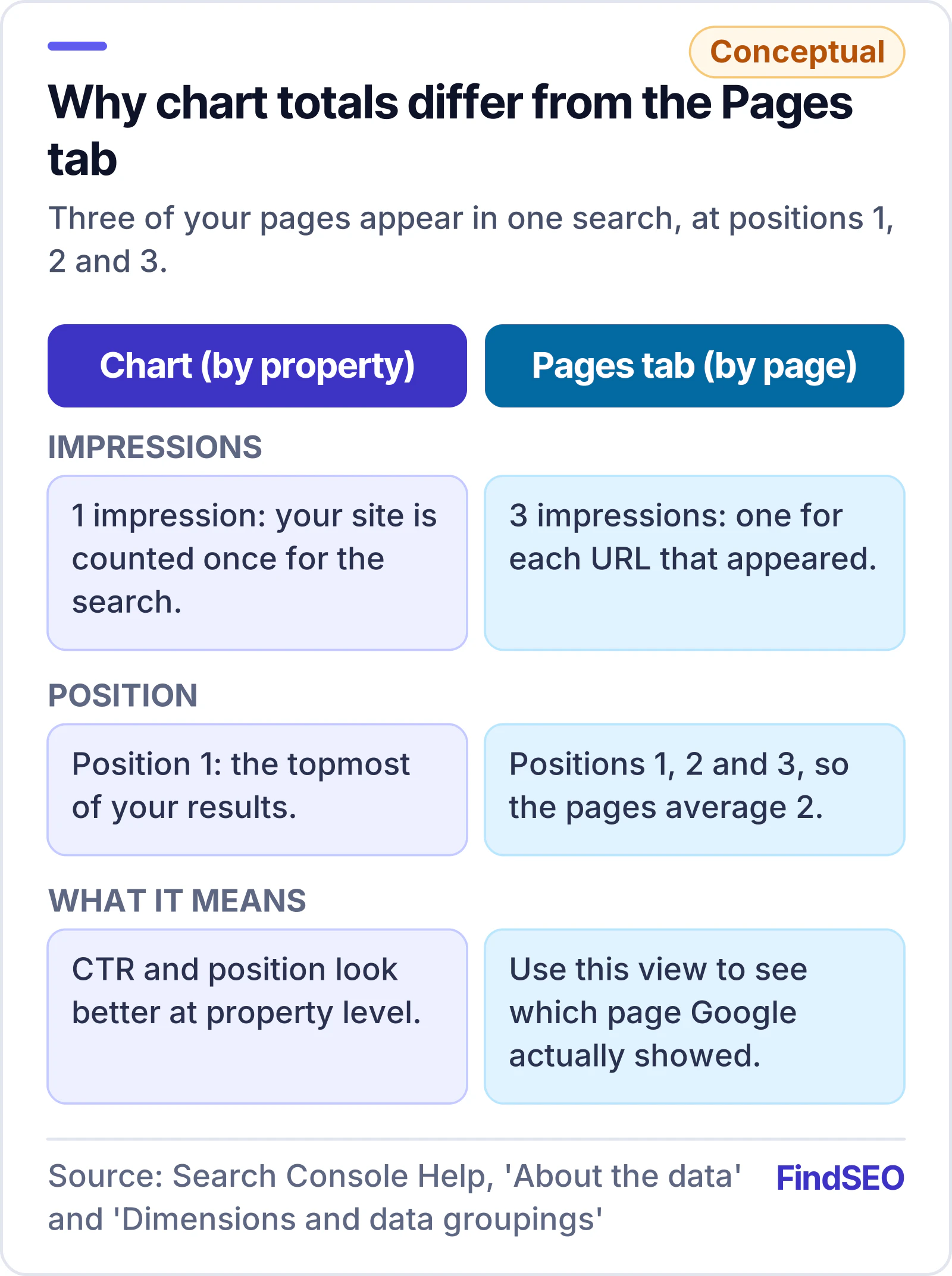
- Property vs page totals. The chart counts all your results for a query once, while the Pages tab counts each URL separately. That's why totals can differ, and why CTR and position look higher at property level.
- Preliminary data. The newest data may still change over the next few hours, shown as a dotted line.
- Position isn't everything. Google's common tasks guide recommends focusing more on trends in impressions and clicks than on position alone.
- Exports. You can export chart and table data. Values shown as ~ or - become zeros in the download.
A Search Console keyword ideas checklist
- Set the date range to the last three months or longer, with all four metrics on
- Sort the Queries tab by impressions, then look for low CTR
- Click promising queries to see which page Google shows for each
- Use a regex filter to list question, cost and local searches
- Filter to Australia if you only serve Australian customers
- Separate branded and non-branded searches
- Compare date ranges and sort by the Difference column
- Check new ideas against existing pages to avoid cannibalisation
- Export the list and add the best ideas to your content plan
The bottom line
Search Console is the most honest keyword tool you have, because it shows real searches that already reach your site. Start with high-impression, low-CTR queries, then mine question, local and non-branded searches for new content. Turn the best ideas into a plan with our SEO Brief Builder, tidy up titles with our Meta Tag Generator, and confirm new pages are indexed with our Google Index Checker. If you'd rather hand it over, browse content SEO agencies in Australia or get matched with one.