Technical SEO

Is JavaScript Bad for SEO? How Google Handles JavaScript Websites

Google can run JavaScript, but JavaScript sites still lose content, links and pages in search. How rendering works, what goes wrong, and how to check your site.

FindSEO7 min read

Close-up of a computer monitor filled with lines of colour-highlighted JavaScript code, slightly out of focus towards the edges.

Photo: Markus Spiske / Wikimedia Commons (CC0)

In this article
  1. Can Google read JavaScript websites?
  2. Why do JavaScript websites still have SEO problems?
  3. What about other search engines and crawlers?
  4. Which rendering approach is best for SEO?
  5. How can you check whether Google sees your JavaScript content?
  6. What should you ask your developer or SEO agency?
  7. JavaScript SEO checklist
  8. The bottom line

No, JavaScript isn't bad for SEO in itself. Google runs JavaScript with an up-to-date version of Chromium and can index content that JavaScript adds to a page. The risk is in how a site uses it: content that only appears after a click, links Google can't follow, error pages that look like real pages, and crawlers that don't run JavaScript at all. The safest setup is simple to describe: your main content, links, title, canonical and status code should already be in the HTML the server sends.

This guide explains how Google processes JavaScript, the mistakes that cause problems, which rendering approach to choose, and how to check your own site without being a developer.

Can Google read JavaScript websites?

Yes, with an extra step. Google's JavaScript SEO basics guide describes three phases: crawling, rendering and indexing.

  1. Crawling. Googlebot requests the URL, after first checking robots.txt. If the URL is disallowed, Google doesn't fetch it and won't render it.
  2. Rendering. Every page that returns a 200 status code goes into a rendering queue, unless a robots meta tag or header says not to index it. Google says a page may wait there for a few seconds, "but it can take longer than that." A headless Chromium browser then loads the page and runs its JavaScript.
  3. Indexing. Google uses the rendered HTML to index the page and looks through it again for new links to crawl.

So a site that builds its content in the browser can still be indexed. The catch is that everything Google learns about the page now depends on that rendering step working. If the content is already in the first HTML response, Google gets it on the first pass. Our Academy lesson on how search engines work covers crawling and indexing in more depth, and our glossary entry on JavaScript SEO gives the short version.
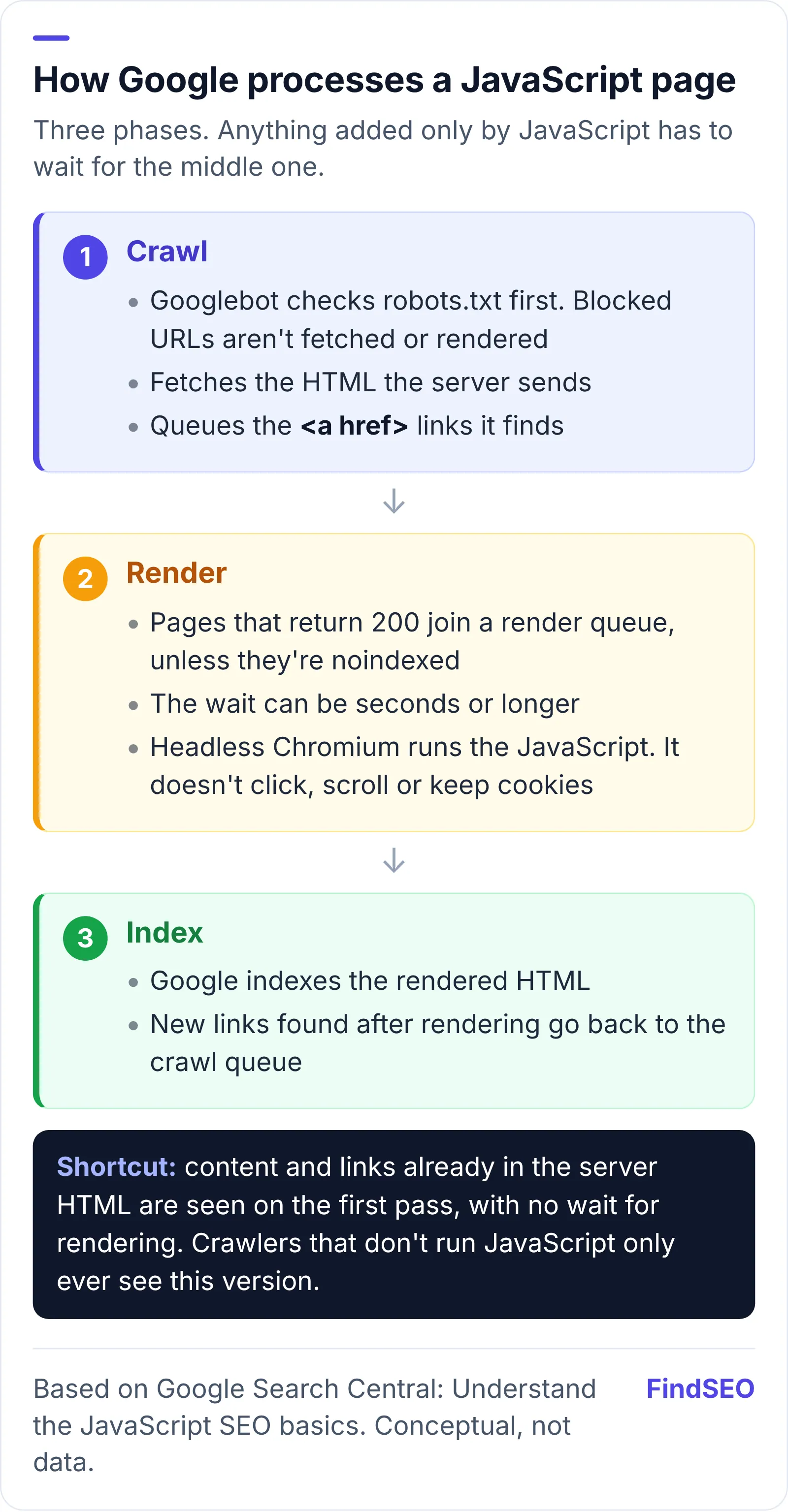
Flow diagram of how Google processes a JavaScript page in three phases. Crawl: Googlebot checks robots.txt, fetches the HTML and queues the links it finds. Render: pages that return 200 wait in a render queue, then headless Chromium runs the JavaScript. Index: Google indexes the rendered HTML and queues any new links. A side note says content and links already in the server HTML are seen on the first pass, without waiting for rendering.
Google crawls, renders, then indexes. Anything that's only added by JavaScript waits for the render step. Based on Google Search Central's JavaScript SEO basics. Conceptual, not data.

Why do JavaScript websites still have SEO problems?

Because Google's renderer behaves like a browser that nobody is using. It doesn't click, scroll, accept prompts or remember anything between pages. Most JavaScript SEO problems come from forgetting that. Google's guide to fixing JavaScript problems and its related documentation list the usual culprits:

  1. Content that waits for a click or scroll. Google says it "does not interact with your page." Tabs, "load more" buttons and lazy-loading that relies on scrolling can hide content. Google's lazy-loading guidance recommends loading content when it's visible in the viewport, and giving infinite-scroll chunks their own URLs.
  2. Links that aren't real links. Google's link best practices say it can generally only crawl an <a> element with an href. Buttons or spans with click handlers may never be followed, which leaves pages undiscovered and weakens internal linking.
  3. Hash URLs for different pages. Addresses like example.com/#/products don't work reliably. Google deprecated the old AJAX crawling scheme in 2015 and recommends the History API instead.
  4. Error pages that return 200. Single-page apps often show a "not found" message while the server says everything is fine. Google calls these soft 404s, and they can end up indexed. The fix is to redirect to a URL that returns a real 404, or add a noindex tag to the error view.
  5. A noindex tag that JavaScript is meant to remove. When Google sees noindex in the original HTML, it may skip rendering, so script that removes the tag later may never run.
  6. Canonical tags that change after rendering. Google says JavaScript shouldn't change the canonical tag to a different URL from the one in the original HTML.
  7. Blocked script files. If robots.txt blocks the JavaScript a page needs, Google can't render it properly.
  8. Content that depends on stored state or permissions. Google's renderer clears cookies and local storage between page loads and declines permission requests such as camera access.
  9. Stale files. Googlebot caches aggressively and may ignore caching headers, so Google recommends fingerprinted file names (like main.2bb85551.js) so updates are picked up.

If pages aren't appearing at all, start with our guide to why a page isn't indexed, since JavaScript is only one possible cause.

A person types on a silver laptop at a wooden desk; the screen shows a code editor open over a web page.
Most JavaScript SEO fixes are small development changes once someone knows what to look for. Photo: Crew, CC0, via Wikimedia Commons.

What about other search engines and crawlers?

Don't assume they render JavaScript the way Google does. Google itself makes the point twice: its JavaScript basics guide says server-side rendering is still a great idea because "not all bots can run JavaScript," and its page on dynamic rendering warns that other search engines "may choose to ignore JavaScript and won't see JavaScript-generated content."

That matters if you care about more than Google. If your service descriptions, prices or locations only exist after JavaScript runs, any crawler that reads only the raw HTML sees a mostly empty page. If Bing matters to your business, our guide to setting up Bing Webmaster Tools shows how to verify your site and see Bing's own indexing data.

Which rendering approach is best for SEO?

The one that puts finished HTML in the first response. Google now describes dynamic rendering (serving bots a different, pre-rendered version) as "a workaround and not a long-term solution," and recommends server-side rendering, static rendering or hydration instead. The Rendering on the Web guide on web.dev defines the options:

Approach What the first HTML contains SEO fit
Server-side rendering (SSR) The full page, built on the server for each request Strong: every crawler gets the content
Static rendering or prerendering The full page, built ahead of time Strong: fast and complete
SSR with hydration The full page, with JavaScript then adding interactivity Strong, if the hydrated page matches the HTML
Client-side rendering (CSR) A near-empty shell; the browser builds the page Risky: relies on rendering, and some bots see nothing
Dynamic rendering A pre-rendered copy for bots, the app for people A workaround Google no longer recommends

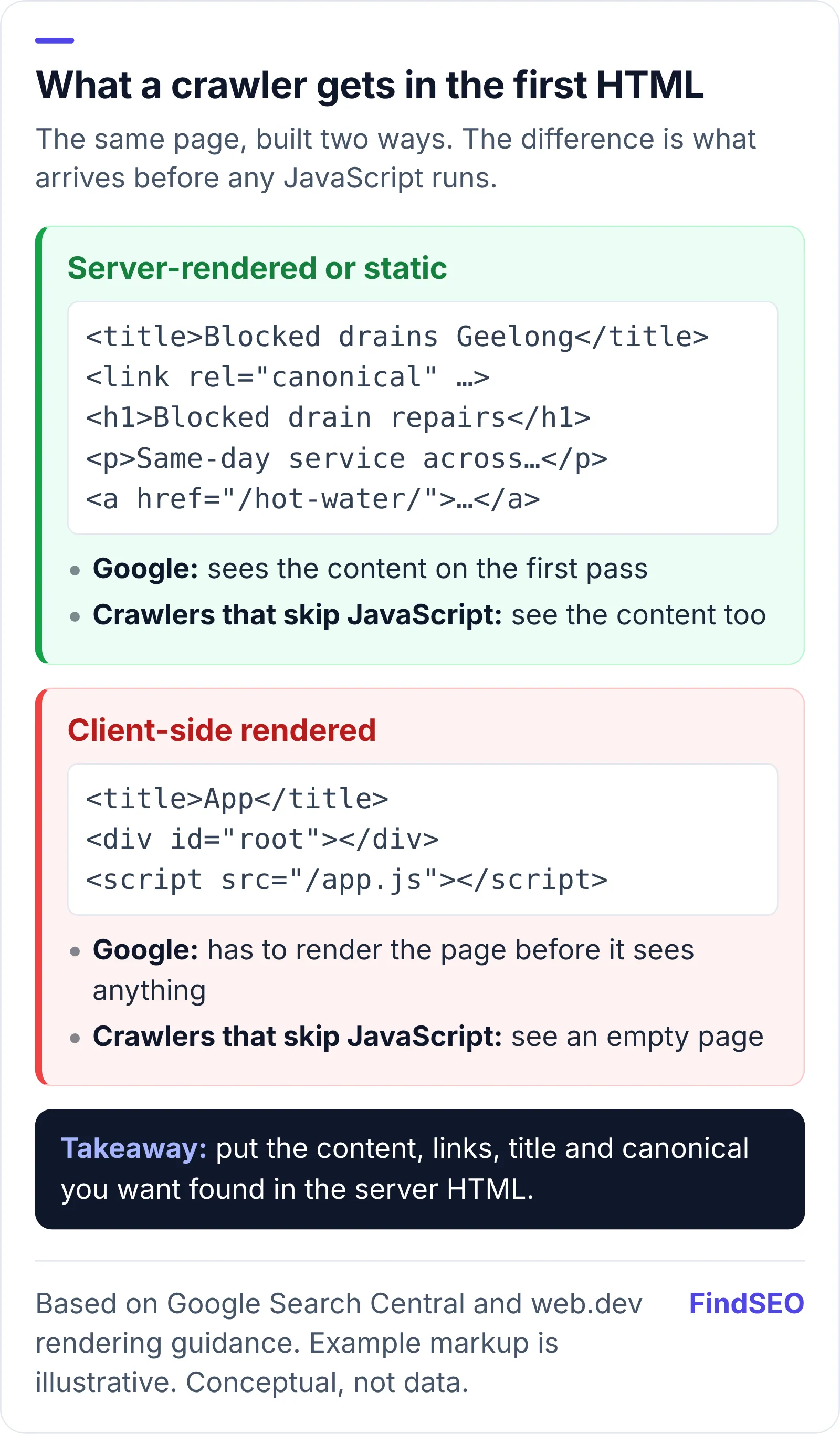
Many modern frameworks can render the same pages on the server, so this is often a configuration choice rather than a rebuild. You can also mix approaches: server-render the pages you want found, such as services, locations and articles, and keep client-side rendering for logged-in tools.

Comparison of what a crawler receives from a server-rendered page and a client-side rendered page. Server-rendered: the first HTML already holds the heading, text, links, title and canonical, so Google and crawlers that don't run JavaScript see the content straight away. Client-side rendered: the first HTML is a near-empty shell with a script tag, so Google must render it first and crawlers that skip JavaScript see an empty page. The takeaway: put the content you want found in the server HTML.
Server-rendered pages give every crawler the content up front; client-side pages depend on rendering. Based on Google Search Central and web.dev guidance. Conceptual, not data.

How can you check whether Google sees your JavaScript content?

You don't need to read code to run these checks. You do need Google Search Console; if it isn't set up, start with our guide to setting up Google Search Console.

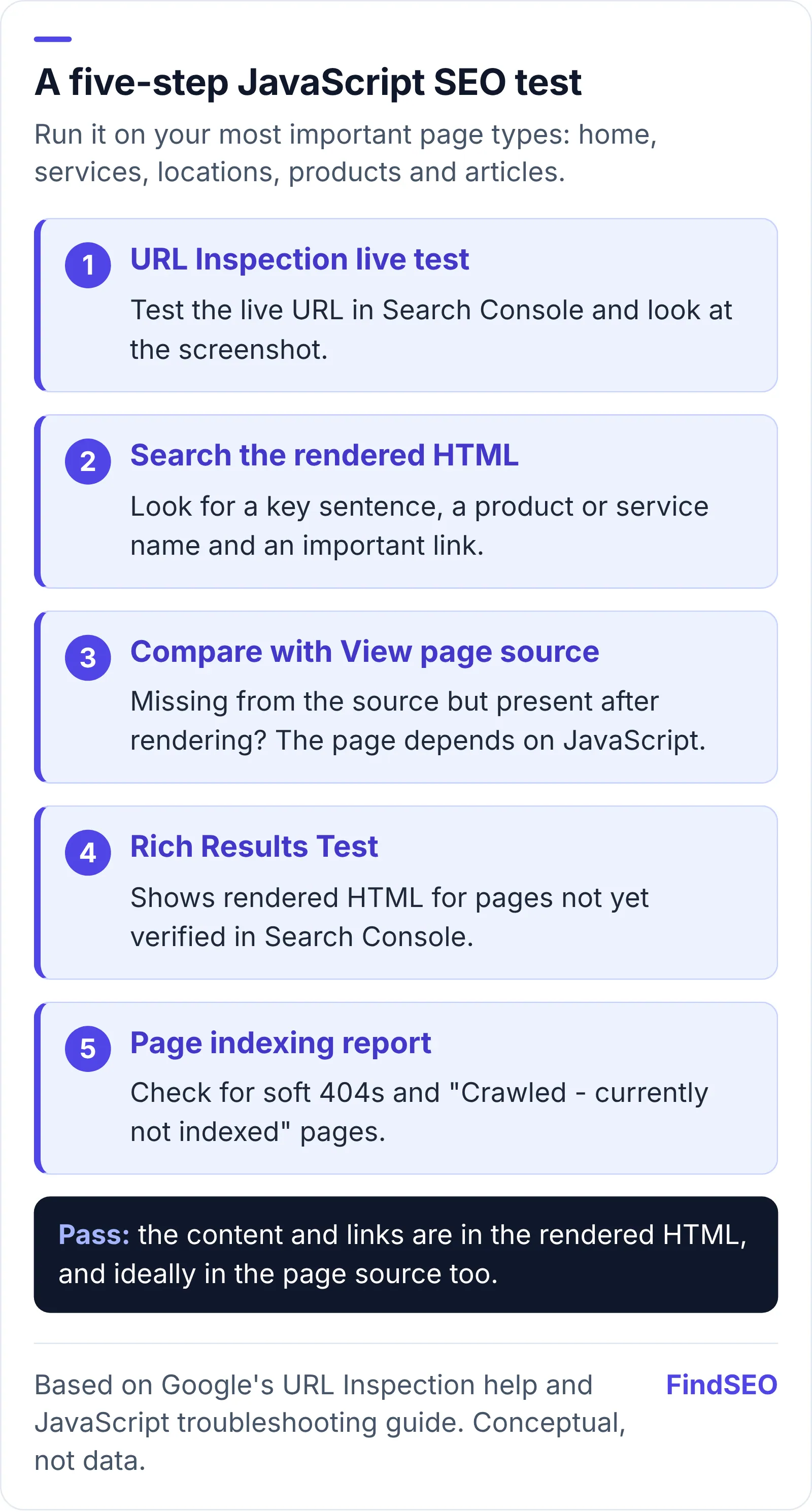
  1. Run a live test in URL Inspection. Google's URL Inspection tool help explains how to test a live URL and view a screenshot of how Google sees it. Under More info, you can see loaded resources and JavaScript console messages.
  2. Search the rendered HTML for your key content. Pick a sentence from the main text, a product name and an important link. If they're missing from the rendered HTML, Google can't index them.
  3. Compare with the raw HTML. Use your browser's "View page source" (not "Inspect"). If the main text is missing there but present in the rendered version, your site depends on rendering, and crawlers that skip JavaScript won't see it.
  4. Use the Rich Results Test for pages you don't own yet. Google's Rich Results Test also shows rendered HTML, which helps when you're assessing a site before it's verified.
  5. Check indexing at scale. In the Page indexing report, look for soft 404s and pages that are "Crawled - currently not indexed." Our free Google Index Checker gives a quick read on a single URL.
Annotated checklist for a five-step JavaScript SEO test. One: run a live test in URL Inspection and view the screenshot. Two: search the rendered HTML for a key sentence, a product name and an important link. Three: compare with View page source to see whether content depends on rendering. Four: use the Rich Results Test for pages not verified in Search Console. Five: check the Page indexing report for soft 404s and crawled but not indexed pages. Pass means the content is in the rendered HTML, and ideally the raw HTML too.
A quick test anyone with Search Console access can run on their most important pages. Based on Google's URL Inspection and JavaScript troubleshooting documentation. Conceptual, not data.

What should you ask your developer or SEO agency?

JavaScript issues are a standard part of a technical audit. Our guide to what a technical SEO audit includes shows where they fit. These questions get to the point quickly:

  1. Is our main content in the server HTML, or added by JavaScript? The answer should be specific to page types: services, locations, products and articles.
  2. Do all navigation and in-content links use real <a href> links?
  3. What status code do missing pages return? A missing product should return 404, not a 200 page that says "not found."
  4. Are titles, meta descriptions and canonicals in the original HTML?
  5. How do you test rendering after each release? URL Inspection checks on key templates are a reasonable minimum.

If you're planning a rebuild on a new JavaScript framework, treat it like any other migration and read our guide to redesigning a website without losing SEO first. Before URLs change, check which pages carry the most weight with the free page authority checker, and use our SEO ROI calculator to estimate what your organic leads are worth before you sign off on the risk.

A quick rule of thumb: if the words you want to be found for aren't in View page source, assume only Google will see them, and only after rendering.

JavaScript SEO checklist

  • Main content, headings and links are in the HTML the server sends.
  • Every link you want crawled is an <a> element with an href.
  • Each page has its own URL, with no hash-based routing.
  • Missing pages return a 404 (or are noindexed), not a 200.
  • No page you want indexed has noindex in its original HTML.
  • Title, meta description and canonical are set in the original HTML.
  • robots.txt doesn't block the scripts or styles pages need.
  • Lazy-loaded content loads when it's in view, without a click.
  • Script file names are fingerprinted so Google picks up updates.
  • Key templates pass a URL Inspection live test after each release.

The bottom line

JavaScript doesn't stop a site ranking, but it adds a step where things can quietly go wrong, and some crawlers skip that step entirely. Put the content and links you want found in the server's HTML, use real links and real status codes, and test key pages in URL Inspection after every release. If your site is built on a JavaScript framework and you want help checking it, compare technical SEO specialists, browse SEO agencies in Melbourne, or get matched with an SEO agency.

FAQs

Can Google index JavaScript content?

Yes. Google renders pages with an up-to-date version of Chromium and indexes the rendered HTML. Pages wait in a rendering queue first, and content that needs a click, scroll or stored login to appear may not be seen, so important content is safest in the HTML the server sends.

Is React, Vue or Angular bad for SEO?

Not in itself. The framework matters less than how pages are rendered. Sites built with these frameworks do well when pages are server-rendered or prerendered, use real links and return correct status codes. Problems usually come from client-side-only rendering and app-style routing.

Do other search engines run JavaScript?

Don't rely on it. Google says not all bots can run JavaScript, and that other search engines may ignore it and miss JavaScript-generated content. Server-side or static rendering makes your content readable by any crawler.

Is dynamic rendering still recommended?

No. Google describes dynamic rendering as a workaround rather than a long-term solution and recommends server-side rendering, static rendering or hydration instead. Google says it generally isn't treated as cloaking as long as bots and people get similar content.

How do I know if JavaScript is hurting my SEO?

Run a live test in Search Console's URL Inspection tool and check whether your main text and links appear in the rendered HTML. Compare that with View page source, and check the Page indexing report for soft 404s and crawled but not indexed pages.

Sources

Ready for help with SEO?

Compare SEO-only agencies near you, with client reviews checked by a person, or tell us what you need and get matched.