If your page isn't indexed, Google either hasn't found it, couldn't crawl it, was told not to index it, or decided another URL (or nothing at all) should go in the index instead. The fastest way to find out which is to paste the URL into the URL Inspection tool in Google Search Console. It shows whether the page is indexed and, if not, the reason Google gives. Most reasons have a clear fix. A few, like "Crawled - currently not indexed", are Google's call, and the fix is a better page rather than another request.
How does a page get into Google's index?
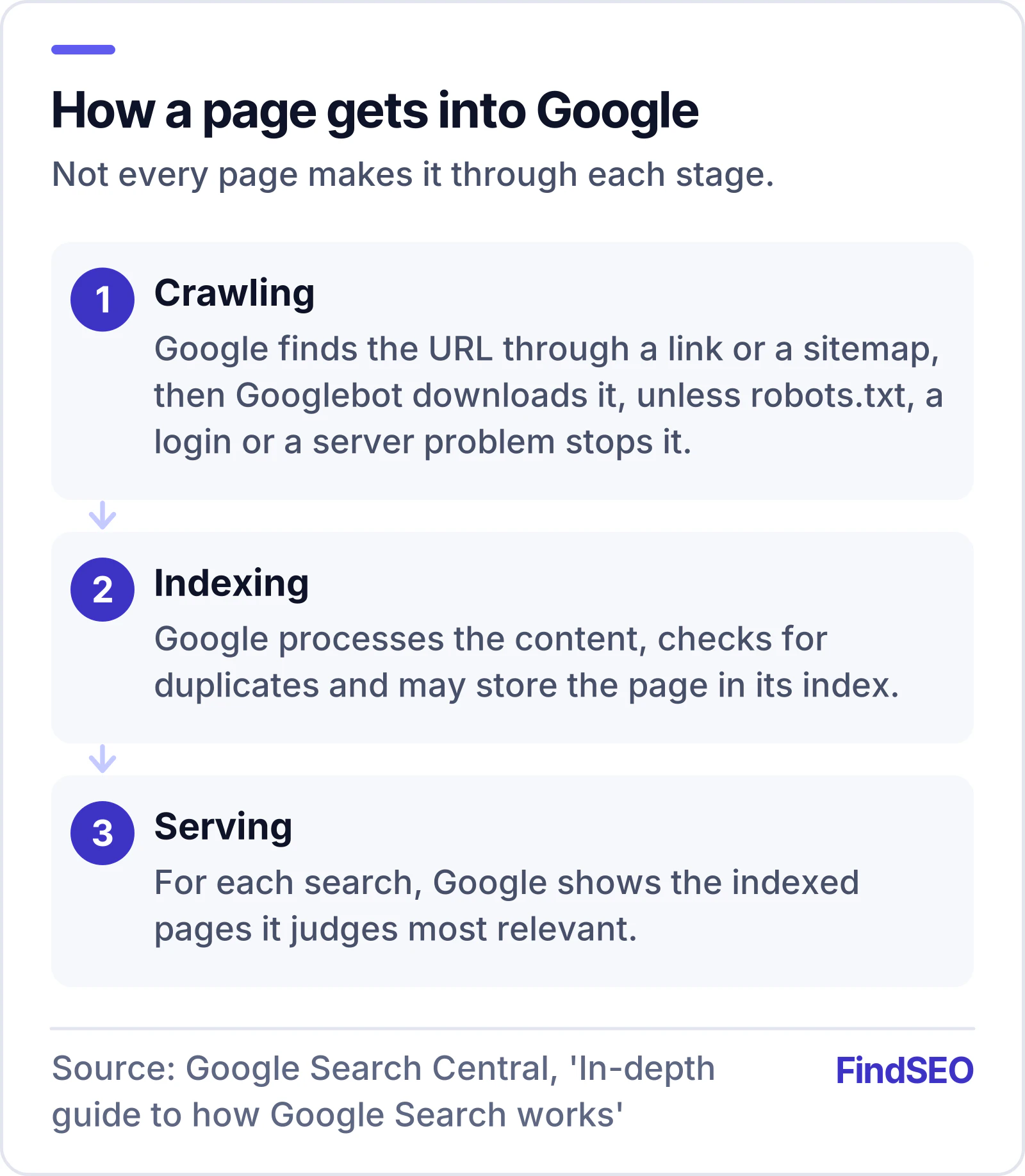
Google explains in its guide to how Search works that every page goes through three stages, and not every page makes it through each one:
- Crawling. Google discovers the URL, usually from a link on a page it already knows or from a sitemap, and its crawler, Googlebot, downloads the page.
- Indexing. Google processes the content, works out whether the page is a duplicate of another page, and may store it in the index.
- Serving. When someone searches, Google picks the most relevant pages from the index to show.
The same guide is blunt that Google doesn't guarantee it will crawl, index or serve a page, even one that follows its rules. So "not indexed" isn't always a fault. The task is to work out whether the reason is one you can fix, and whether it's a page you actually want indexed. If crawling and indexing are new terms, the Academy lesson on how search engines work covers the basics in a few minutes.
How do you check if a page is indexed?
There are three ways, from quickest to most reliable:
- A site: search. Search Google for
site:followed by the exact URL. Google's Page indexing report help suggests this as a starting point for small sites. It's a rough check, not a definitive answer. - The URL Inspection tool. In Google Search Console, inspect the URL to see its index status, when Google last crawled it, which canonical Google chose, and any problem it found. You can also test the live page.
- The Page indexing report. This shows every URL Google knows about on your site, grouped by the reason it isn't indexed. Use it to spot patterns, such as a whole folder blocked by mistake.

If you don't have Search Console access yet, our free Google index checker tests whether Google can index any URL: the status code and redirects, robots.txt, noindex rules, the canonical tag and your sitemap. It can't tell you whether Google already has, so use URL Inspection for that.
What do the "not indexed" reasons mean?
The Page indexing report gives each non-indexed URL a reason. Here are the ones you'll see most often, with what Google's documentation says about each:
| Reason in Search Console | What it means | Usually a problem? |
|---|---|---|
| URL marked 'noindex' | The page tells Google not to index it | Only if you want it indexed |
| URL blocked by robots.txt | Your robots.txt file stops Google crawling the URL | Only if you want it indexed |
| Not found (404) | The URL returns a 404 error | Only if the page should exist |
| Soft 404 | The page looks like an error page but returns a success code | Yes |
| Page with redirect | The URL redirects elsewhere, so only the target can be indexed | No, if the redirect is intended |
| Duplicate without user-selected canonical | Google chose another URL as the main version | Only if Google picked the wrong one |
| Server error (5xx) | Your server failed when Google asked for the page | Yes |
| Discovered - currently not indexed | Google knows the URL but hasn't crawled it yet | Sometimes |
| Crawled - currently not indexed | Google crawled the page and chose not to index it, for now | Sometimes |
Google's report help is clear that most sites have some pages that aren't indexed, and that's fine when the reason is right: an intended robots.txt rule, a noindex tag on a page you want hidden, a duplicate URL, or a 404 for a page you removed. What matters is that your important pages are indexed.
How do you fix each indexing problem?
Start with the reasons that have a "Website" source in the report, because those are the ones you can fix.
URL marked 'noindex'
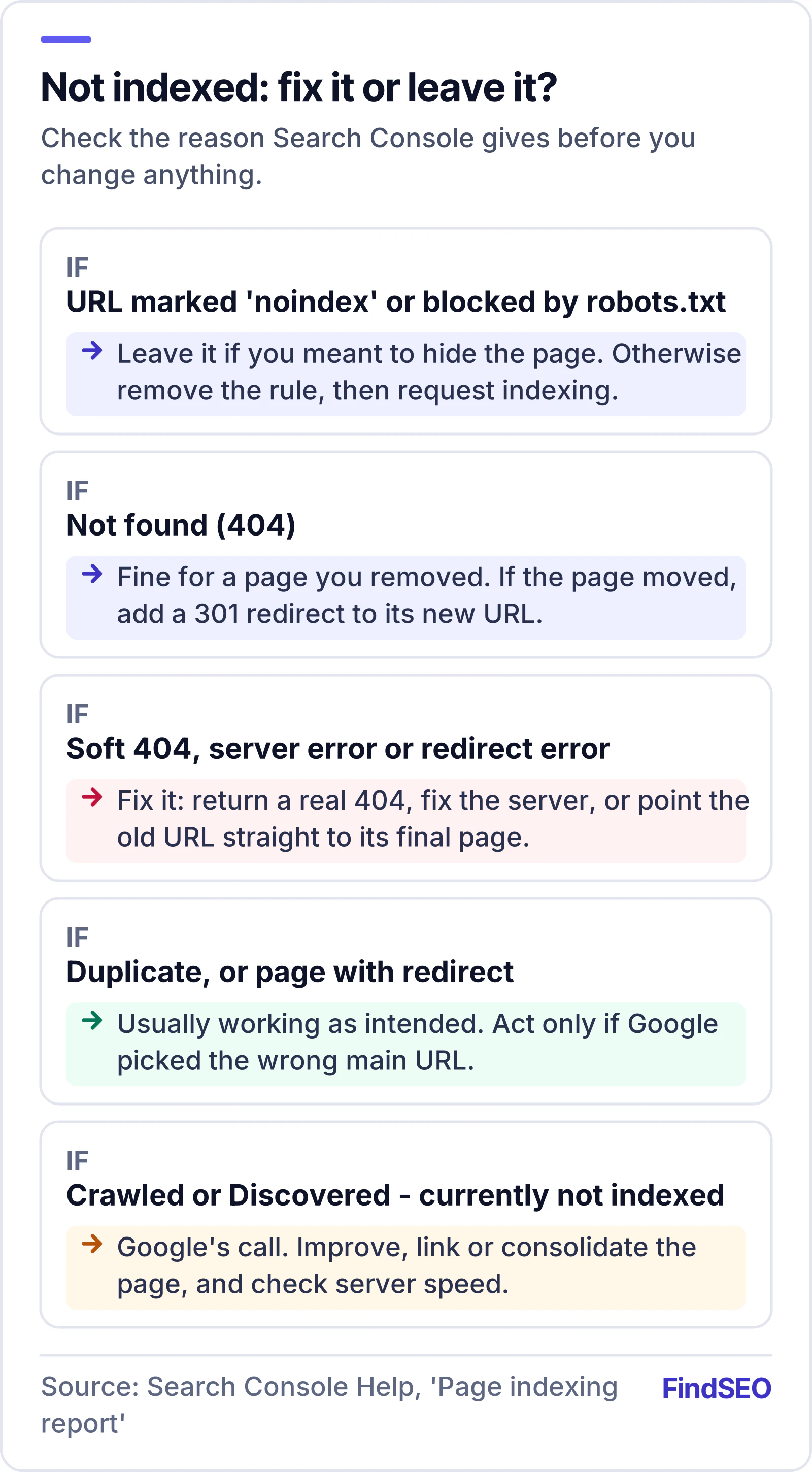
Search the page's source code and HTTP headers for "noindex". It often comes from a plugin setting, a staging site that went live with its settings intact, or a template that was copied from a private page. Remove it, then run a live test in URL Inspection and request indexing.
URL blocked by robots.txt
Find the rule in your robots.txt file that matches the URL and remove or narrow it. Our robots.txt generator helps you write a clean file. Don't use robots.txt to keep a page out of Google. Google's guide to blocking indexing with noindex explains that a blocked page can still appear in results if other pages link to it, and that Google can't see a noindex rule on a page it isn't allowed to crawl.
Not found (404) and soft 404
A 404 is fine for a page you removed on purpose. If the page moved, add a 301 redirect to its new home, and use our redirect checker to confirm each old URL lands in one hop. A soft 404 is different: Google's documentation on HTTP status codes says it shows this error when a page returns a success code but its content looks like an error message or an empty page. Either return a real 404 for pages that don't exist or give real pages proper content.
Duplicate without user-selected canonical
Google has grouped the page with similar URLs and picked another one to index. If its choice is right, do nothing. If it's wrong, tell Google which URL you prefer with a canonical tag, a redirect or your sitemap, following Google's guide to consolidating duplicate URLs. Our article on whether duplicate content hurts SEO covers this in more depth.
Server errors and redirect errors
Server errors mean Googlebot couldn't get the page, the request timed out or the site was busy. Check the Crawl Stats report in Search Console for availability problems, and ask your host whether a firewall or bot protection is blocking Googlebot. Redirect errors usually mean a loop or a chain that's too long, so point every old URL straight to its final destination.
Why does Google say "Crawled - currently not indexed"?
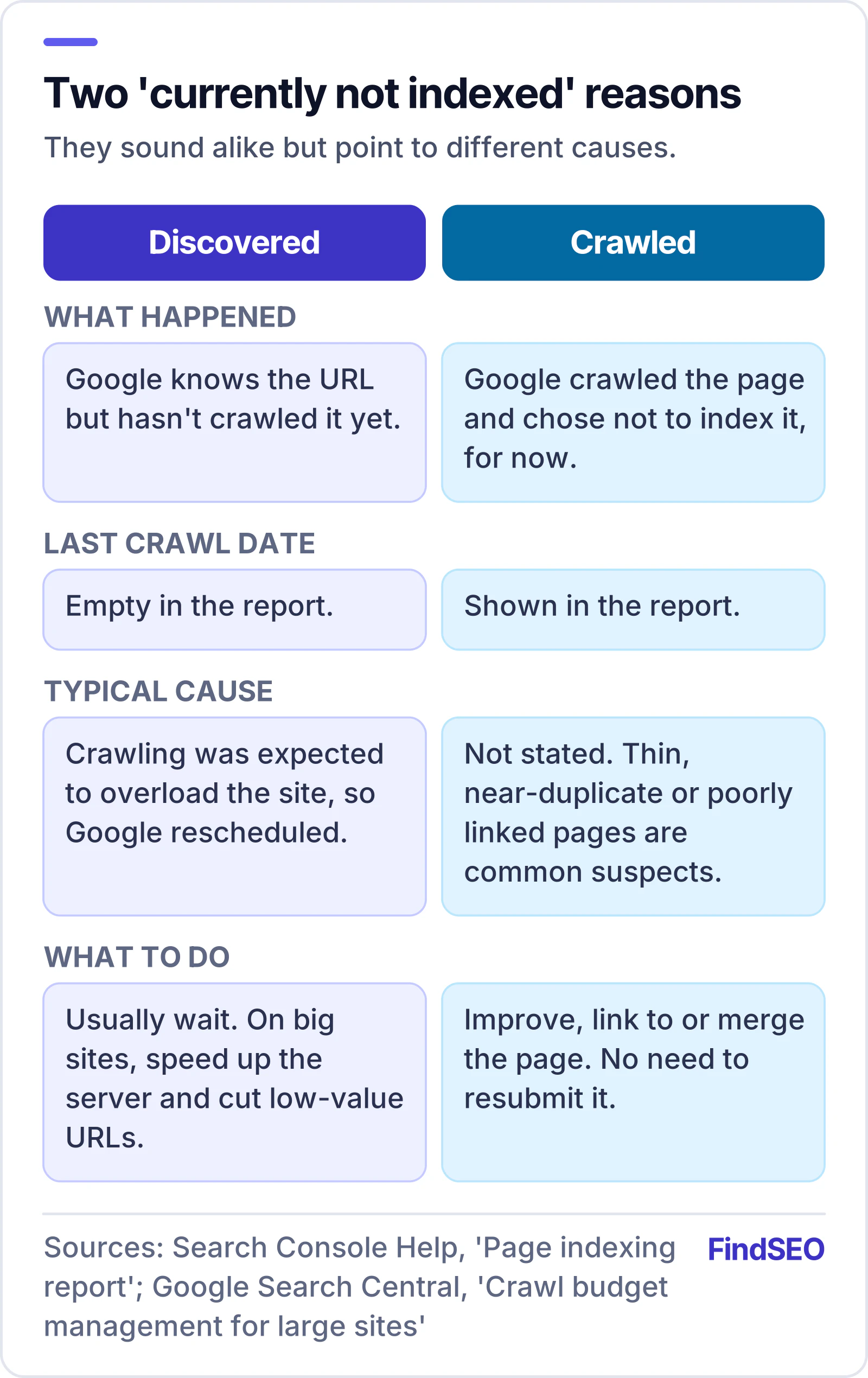
This one causes the most worry, because there's no setting to change. Google's report help says the page was crawled but not indexed, that it may or may not be indexed in the future, and that there's no need to resubmit it.
In practice, look at the page as a searcher would:
- Is it thin or repetitive? A page with little original content, or one that repeats what other pages on your site already say, gives Google little reason to index it. Our helpful content self-assessment walks through the questions Google asks you to consider.
- Is it a near-duplicate? Location pages that only swap the suburb name, or product variants with identical descriptions, often end up here.
- Is it well linked? A page with no internal links pointing to it looks unimportant. Link to it from relevant pages with descriptive anchor text.
- Does the content load for Google? If the main content only appears after scripts run, use the live test's rendered screenshot to check Google sees it. Our glossary entry on JavaScript SEO explains why this matters.
If a page doesn't deserve to rank, it may be better to merge it into a stronger page, redirect it, or remove it, rather than trying to force it into the index.
Why does Google say "Discovered - currently not indexed"?
Here, Google knows the URL but hasn't crawled it. The report help says that's typically because Google expected crawling to overload the site, so it rescheduled. That's why the last crawl date is empty.
For most small and medium sites, this clears on its own. If a large share of your URLs sit here, Google's guide to managing crawl budget is written for exactly that case, along with very large sites (roughly a million or more pages) and sites with 10,000 or more pages that change daily. The usual fixes are to speed up the server, cut low-value URLs such as endless filter combinations, eliminate soft 404s and keep your XML sitemap limited to pages you want indexed.
How long does indexing take, and can you speed it up?
Google's report help says a new page or site can take a week or so to start being crawled and indexed, and that after a URL is known it can take up to a few weeks before Google crawls it. Its guide to asking Google to recrawl gives two options:
- Request indexing in URL Inspection for a handful of important URLs. There's a quota, and requesting the same URL repeatedly won't get it crawled faster.
- Submit a sitemap for many URLs at once. Our guide to whether you need an XML sitemap explains when it helps.

Google adds that requesting a crawl doesn't guarantee the page will be included, instantly or at all. Once you've fixed a reason across many pages, click Validate fix in the Page indexing report. Google says validation typically takes up to about two weeks, and sometimes longer.
Indexing is also only the first step. An indexed page still has to earn its rankings, which is why our guide to how long SEO takes talks in months rather than days.
A checklist when a page isn't indexed
- Inspect the URL in Search Console and note the exact reason
- Confirm the page returns a 200 status code, not a redirect or error
- Search the source and headers for a noindex rule
- Check that no robots.txt rule matches the URL
- Check the canonical tag points to the page itself, or to the version you want indexed
- Make sure at least one indexed page links to it with a normal HTML link
- Add it to your XML sitemap, and remove URLs you don't want indexed
- Run a live test and view the rendered page to confirm the content loads
- Improve or merge thin and near-duplicate pages
- Request indexing once, then give it a few weeks
- Click Validate fix after fixing a reason across many URLs
If dozens or hundreds of pages are affected, it's usually a site-wide cause such as a template, plugin or migration, and it's worth a proper technical SEO audit.
The bottom line
A page that isn't indexed is missing for a reason, and Search Console will usually tell you what it is. Fix the reasons you control, like noindex tags, robots.txt rules, broken redirects and server errors, and treat "Crawled - currently not indexed" as a signal to improve or consolidate the page. Don't chase 100% indexing: Google only wants the main version of each useful page. If your site has wider problems, compare technical SEO agencies in Australia or use Get matched to find a specialist who can show you the Search Console data behind their fixes.