
Visits from AI assistants such as ChatGPT, Perplexity, Gemini, Copilot and Claude can be tracked in Google Analytics 4, but by default they're scattered across the Referral, Unassigned and Direct channels. The fix is a custom channel group with an "AI assistants" channel that matches the main AI sources, placed above Referral. It takes about ten minutes, applies to past data too, and gives you a clear view of how much traffic AI tools send and what it does on your site.
This article explains how AI traffic reaches GA4, how to set up the channel, and what you still can't measure.
How AI traffic shows up in GA4
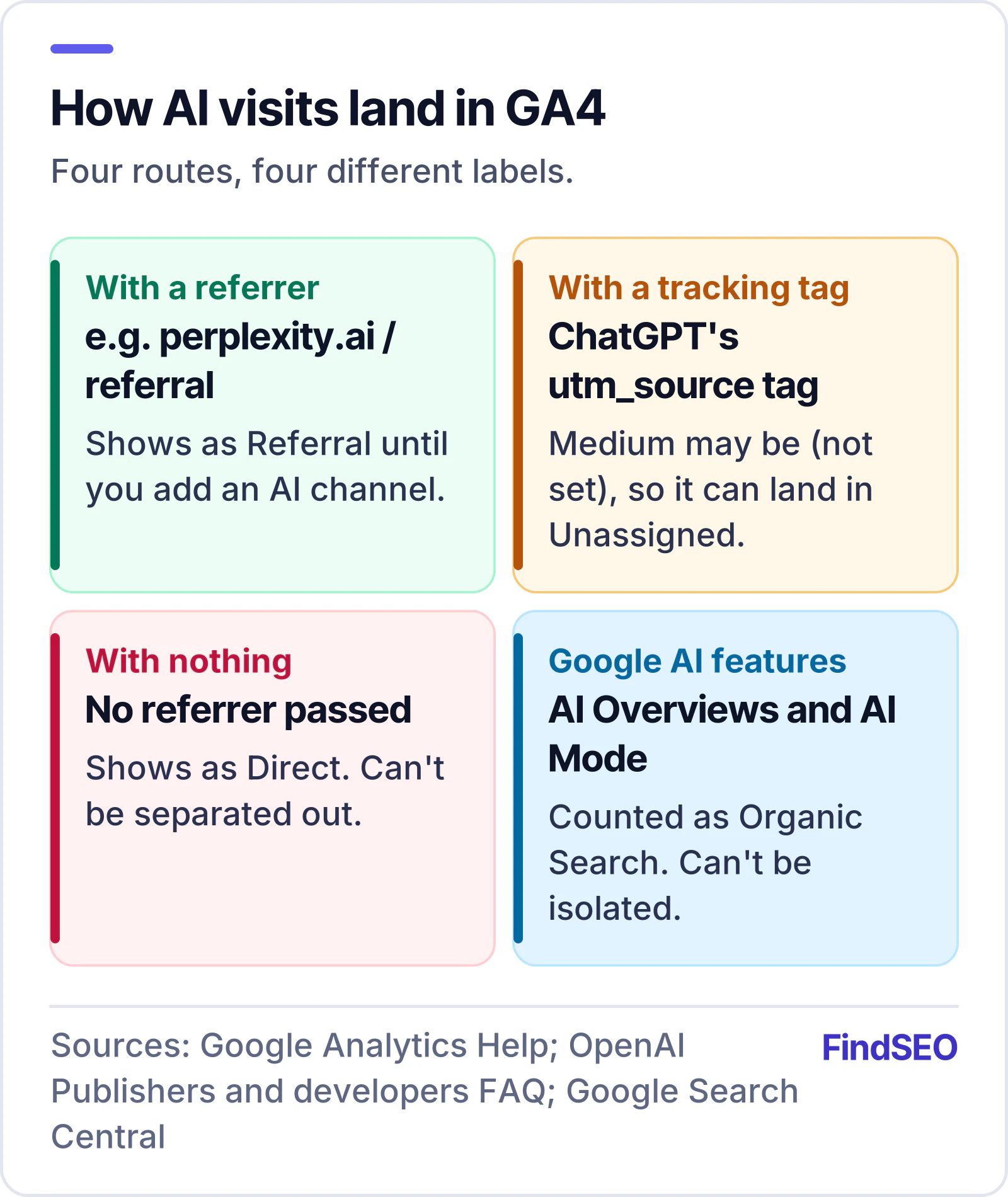
When someone clicks a link in an AI answer, GA4 records the session's source in one of three ways:
- With a referrer. The browser tells your site where the visitor came from, so the session appears as, for example, perplexity.ai / referral.
- With a tracking tag. OpenAI says ChatGPT automatically adds utm_source=chatgpt.com to links in its search answers. Because the tag has a source but no medium, GA4 may record the medium as "(not set)", and the session can land in the Unassigned channel rather than Referral.
- With nothing at all. Some apps and in-app browsers don't pass a referrer. Those visits appear as Direct and can't be separated out.
Clicks from Google's AI Overviews and AI Mode are different. They come from Google Search, so GA4 counts them as normal Organic Search traffic, and Search Console includes them in the Performance report's "Web" search type. You can't isolate them in either tool.
Step 1: see what you already have
Before building anything, look at your existing data:
- Go to Reports → Acquisition → Traffic acquisition.
- Change the primary dimension to Session source / medium.
- Search the table for "chatgpt", "perplexity", "gemini", "copilot" and "claude".
This shows which AI sources are already sending visits, and how they're labelled.
Step 2: create a custom channel group
GA4 lets you create custom channel groups that sort traffic by your own rules. Google says custom channel groups can be applied to your reports retroactively, so you'll see past AI visits once it's set up.
- Go to Admin → Data display → Channel groups.
- Click Create new channel group. GA4 starts you with a copy of the default channels.
- Name it something like "Channels with AI assistants".
- Click Add new channel and name it "AI assistants".
- Set the condition to Session source, matches regex, and enter:
.*(chatgpt\.com|chat\.openai\.com|perplexity\.ai|gemini\.google\.com|copilot\.microsoft\.com|claude\.ai|you\.com|meta\.ai).*
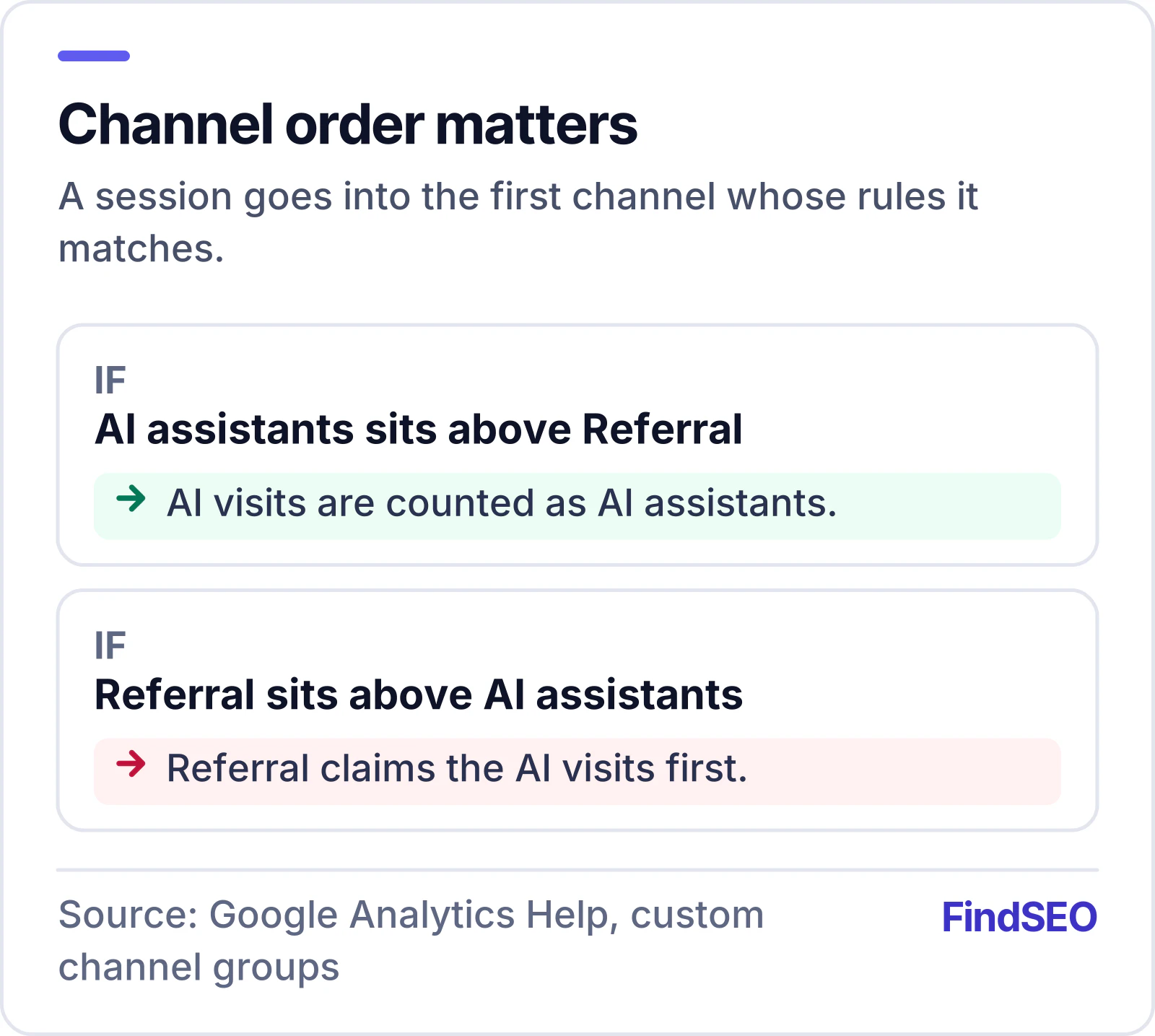
- Click Save channel, then Reorder and drag "AI assistants" above Referral, and click Apply. Traffic goes into the first channel whose rules it matches, so if Referral comes first it will claim these sessions.
- Click Save group.
Google's own help article on custom channel groups uses a very similar "AI assistants" example. Review the source list every few months, because new assistants appear and domains change.
Step 3: report on it
In Traffic acquisition, switch the primary dimension to your new channel group (it appears alongside the default channel group in the dimension picker). You can now compare AI assistants with Organic Search, Referral and the rest on:
- sessions and engaged sessions;
- engagement rate and average engagement time;
- key events (conversions) such as enquiries, calls or purchases;
- the landing pages AI visitors arrive on.
The landing page view is the most useful. It shows which of your pages AI tools are citing, which tells you what kind of content they value.

For a longer view, build a simple Exploration with the custom channel as a dimension and month as a second dimension, so you can watch the trend.
What you can't measure
Be clear-eyed about the gaps:
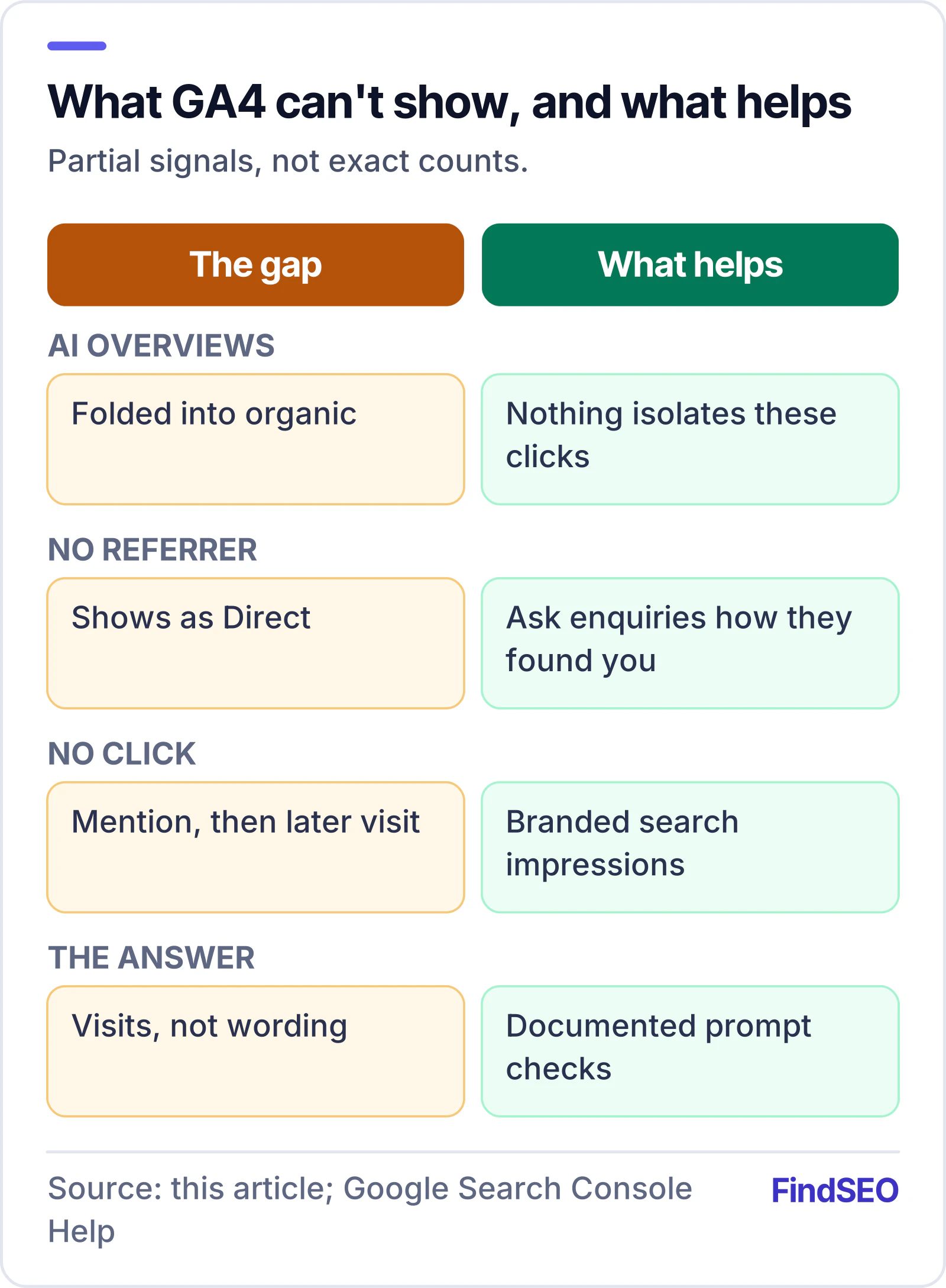
- AI Overviews and AI Mode clicks are folded into Google organic traffic.
- Visits with no referrer from apps and some browsers show up as Direct.
- Mentions without clicks. If an assistant names your business and the person searches for you later, the visit looks like branded organic search or direct traffic.
- What was said about you. Analytics shows visits, not the answer the person read.
To fill some of the gaps, watch branded search impressions in the Search Console Performance report (rising brand searches can reflect AI mentions), ask new enquiries how they heard about you, and keep a regular, documented check of how AI assistants answer your customers' key questions.
Make the most of the traffic you get
AI visitors often arrive with a specific question already half-answered. Make sure the pages they land on:
- confirm the answer quickly and add the detail the assistant left out;
- make the next step obvious (call, quote, book, buy);
- are readable without JavaScript, so AI crawlers can read them too.
Our AI-Readiness Checker is a quick way to review those landing pages.
What this means if you're hiring an agency
Any agency offering AI SEO should set up this kind of tracking in the first month and report on it alongside organic search and leads. Ask to see the channel rules they use, and be sceptical of reports that claim to show exact AI Overview traffic from Google Analytics, because Google doesn't separate it. You can browse AI SEO agencies on FindSEO. For more on what a useful report contains, see what a monthly SEO report should include.