
SEO strategy

How to Set Up Conversion Tracking in Google Ads

Connect your website in Google Ads Goals, create URL or code conversion actions, set Primary and Secondary, and test the tag so bidding can use real results.

FindSEO5 min read

An open black cash drawer with empty compartments and metal note clips, photographed from above.

Photo: Paracekmecesi / Wikimedia Commons (CC BY-SA 4.0)

In this article
  1. What do you need before you start?
  2. How do you connect the website as a data source?
  3. How do you create conversion actions?
  4. A Google Ads conversion tracking checklist
  5. The bottom line

To set up website conversion tracking in Google Ads, go to Goals, open Summary, and select + Create conversion action. Enter your website domain and scan it so Google can see whether a Google tag or a GA4 property is already present. Then create conversion actions for the results you care about — a thank-you page, a purchase or a lead form — using a URL rule or a code event, and decide which actions are Primary and which are Secondary.

Conversion tracking is how Google Ads knows whether a click led to a useful action. Without it, bids and reports can only see clicks and cost, not conversions. This is separate from organic SEO, but the same website events often feed both Ads and Analytics.

The steps below follow Google's guide to setting up web conversions.

What do you need before you start?

You need access to the Google Ads account (Admin access if you will import from Analytics) and a website you can change, or an existing Google tag, Google Tag Manager container or GA4 property on that site.

Google describes two implementation styles:

  • Set up with URL. Best for a thank-you or confirmation page that loads after the action. Once the Google tag is on the site, you can often do this without more code.
  • Set up with code. Needed for button clicks, variable purchase values or transaction IDs.

If a CMS plugin already manages tags, Google warns you not to double-tag the site, because that can report the same conversion twice.

How do you connect the website as a data source?

Google's web conversions guide calls this step 1 of 3:

  1. In Google Ads, go to Goals, then Summary.
  2. Select + Create conversion action. If that option is not available, go straight to entering the website data source.
  3. Select Edit data sources for "Conversions on a website".
  4. Enter the website domain and select Scan.

The scan looks for a Google tag or a Google Analytics property.

  • If a Google tag or a linked Analytics property is found, Google says the website is already set up to measure conversions. Select Done.
  • If an Analytics property is found but is not linked, you can turn on import of app and web metrics and of Analytics audiences, then click Link.
  • If nothing is found, you will be asked to set up a Google tag now or later. Setting it up now follows the on-screen install steps. You can also install the tag through Tag Manager, as long as you do it only once.

To import conversions from GA4, Google says you need Admin access in Google Ads, Edit access in the Analytics property, a working link between the accounts, and events marked as key events in Analytics. After you link the accounts or mark an event as a key event, it can take 24 to 48 hours before the import options appear.
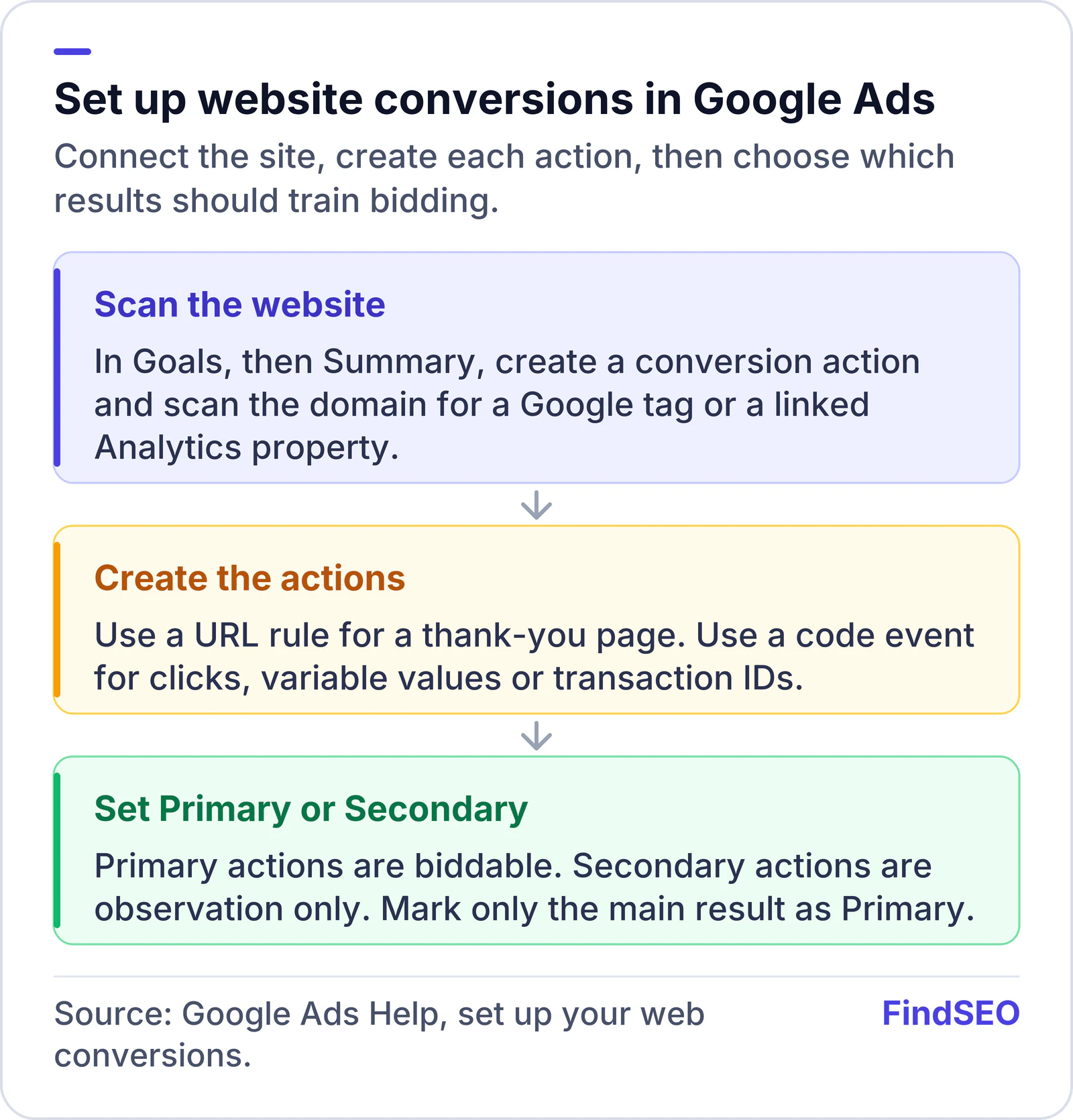
Google Ads website conversion setup: connect a data source by scanning the domain for a Google tag or a linked Analytics property, create conversion actions with a URL rule or a code event, then mark each action Primary for bidding or Secondary for observation only, and avoid installing the same tag twice.
Scan the site first. Then create each conversion action and set it as Primary or Secondary.

How do you create conversion actions?

Step 2 is to create the actions themselves. Google asks you to choose a category that matches the user action, using one of the recommended categories or the full list. Grouping related actions into a conversion goal, such as website and app purchases together, is how Google describes a stronger signal for bidding.

You can accept suggested conversions when Google offers them, or click + Create conversion and choose the Google tag or Google Analytics events as the source.

  • URL method. Use this when a confirmation page loads after the action and you do not need a transaction ID or a dynamic value. Point the action at that URL.
  • Code method. Use this for clicks, variable values or transaction IDs. Google will give you an event snippet in the summary to add to the site or to fire from Tag Manager.

Google also lets you bulk-create conversions from a linked GA4 property through Data manager in the Tools menu: connect Google Analytics (GA4) & Firebase, select the property, then choose existing key events and assign a category.

**Primary versus Secondary matters.

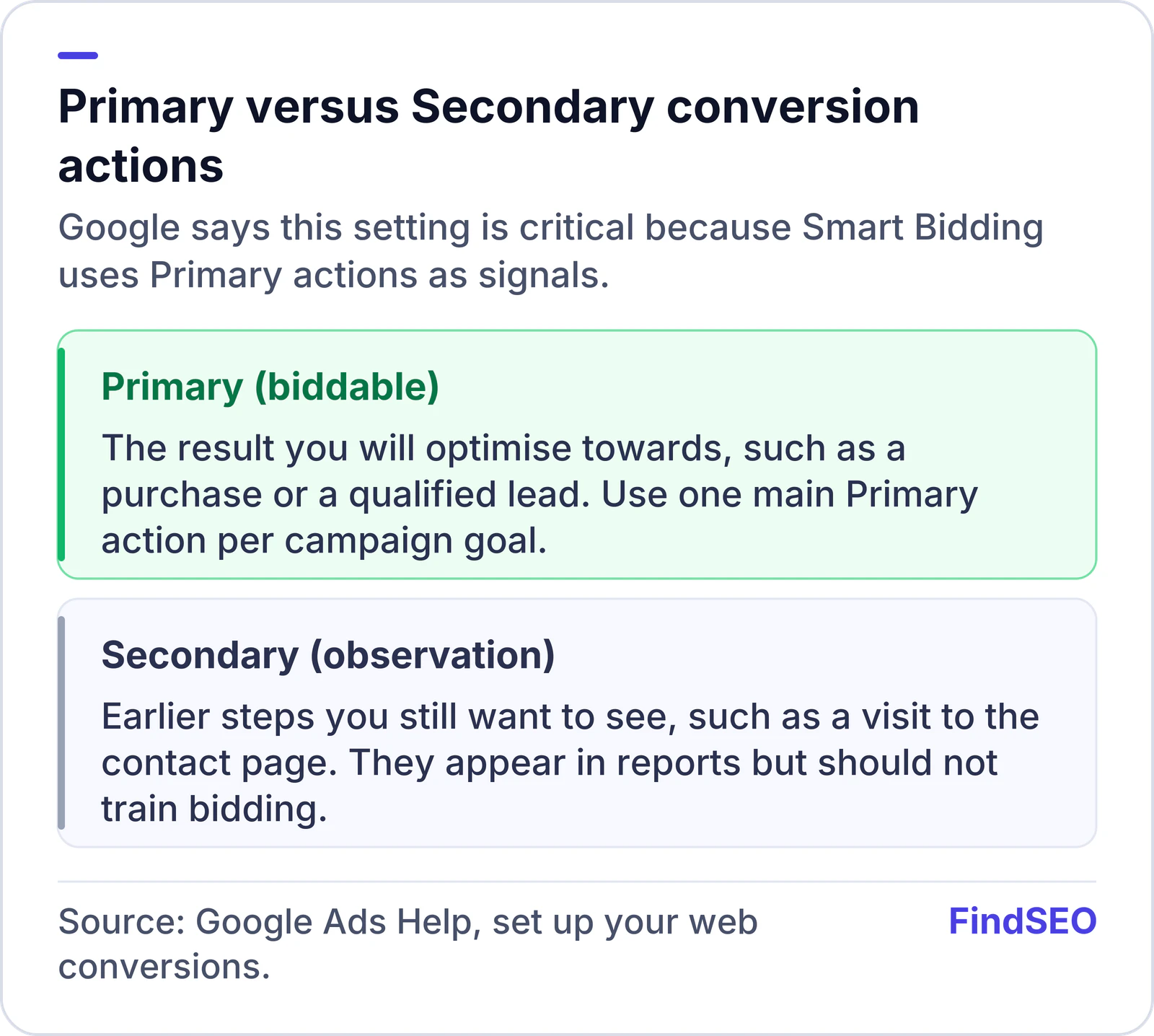
Primary conversion actions in Google Ads are biddable and used by Smart Bidding, such as a purchase or qualified lead. Secondary actions are for observation only, such as a visit to a contact page, and should not train bidding.
Mark only the main result as Primary so bidding is not trained on every early step.
** Google says correctly setting actions as Primary (biddable) or Secondary (observation only) is critical, because Smart Bidding relies on those signals. Mark the one result you will optimise towards as Primary — usually a purchase or a qualified lead — and keep earlier steps, such as a page view of the contact page, as Secondary so they do not train bidding twice.

Check the Google tag status on the conversion summary after you save. Google points to Tag Assistant for Google tags, and to Tag Manager troubleshooting if the container fires the event.

If you also want the same events in Analytics, create them once and import them, rather than building a parallel set of tags that can drift apart. That keeps SEO and ads reporting comparable, and it lines up with the goals and KPIs you already set.

A red timber shopfront in Leiden with clothing displayed in the windows and on a rack on the pavement.
Use a thank-you URL when you can. Use a code event when the conversion is a click or a purchase with a changing value. Photo: W. Bulach, CC BY-SA 4.0, via Wikimedia Commons.

If you need to install a Google tag yourself, Google's pages on adding a Google tag and using the Google tag for conversion tracking explain the tag and the event snippet. Prefer installing that tag through Tag Manager if the container is already on the site. The same Google tag can also serve Analytics when you configure it once and reuse it, which is tidier than three overlapping snippets.

After a conversion is saved, watch the status on the Goals summary. Unverified or no-recent-conversions statuses usually mean the event is not firing, the thank-you URL does not match, or a test has not been completed yet. Work through a real test submission, with Tag Assistant or Tag Manager Preview open, before you change bids. If you also want Search queries next to those conversions in Analytics, link Search Console to GA4 as described in the Analytics setup guide.

Be conservative with conversion values. If you cannot pass a real purchase amount, do not invent one. A lead action can be recorded without a dollar value, and you can still set it as Primary for lead-generation campaigns.

A Google Ads conversion tracking checklist

  • The website domain has been scanned in Goals, and a Google tag, Tag Manager container or linked GA4 property is in place — only once.
  • Each important result has a conversion action with the right category.
  • Thank-you pages use a URL rule; clicks and purchase values use a code event.
  • The action you bid on is Primary; supporting events are Secondary.
  • If you import from GA4, the events are marked as key events and the accounts are linked with the right access.
  • Tag Assistant or Tag Manager Preview shows the event firing when you complete a test conversion.
  • CMS plugins have not added a second copy of the same tag.

The bottom line

Google Ads can only optimise to results it can measure. Connect the website as a data source, create a conversion action for each result that matters, and mark only the main result as Primary. Install the Google tag once, or import key events from GA4, and test a real submission before you increase spend. If you want help lining this up with organic measurement, get matched with an agency, or start with technical SEO services if the thank-you pages and tags need a developer.

FAQs

What is the difference between a Primary and a Secondary conversion in Google Ads?

Google says Primary conversions are biddable and Secondary conversions are for observation only. Smart Bidding uses Primary actions as signals. If you mark every event Primary, you can train bidding on early steps as well as the result that actually matters.

Should I use a URL rule or a code event?

Google recommends a URL setup for a simple page load, such as a thank-you page, when you do not need a transaction ID or a dynamic value. Use a code event for button clicks, variable purchase amounts or transaction IDs.

Can I import Google Analytics 4 events as Google Ads conversions?

Yes. You need Admin access in Google Ads, Edit access in the Analytics property, a link between the accounts, and events marked as key events in Analytics. Google says it can take 24 to 48 hours after linking or marking a key event before the import options appear.

Why might conversions be counted twice?

Google warns that CMS plugins and extra snippets can double-tag a site. If the Google tag, a Tag Manager tag and a plugin each fire the same conversion, reports will inflate. Use one install method and test with Tag Assistant.

Where do I start in the Google Ads interface?

Google's web conversions guide says to go to Summary within the Goals menu, select + Create conversion action, then edit data sources for conversions on a website, enter the domain and click Scan.

Sources

Ready for help with SEO?

Compare SEO-only agencies near you, with client reviews checked by a person, or tell us what you need and get matched.