Local SEO

How to Set Up a Google Business Profile

Add or claim your listing, complete the verification method Google offers, and fill in accurate hours, photos and contact details for Search and Maps.

FindSEO5 min read

A yellow street-level shop facade with arched, barred display windows, blue vertical bands and a Liquors sign above the corner entrance.

Photo: Beyond My Ken / Wikimedia Commons (CC BY-SA 4.0)

In this article
  1. How do you add a new profile?
  2. How do you claim a profile that already exists?
  3. How does verification work?
  4. What names and addresses does Google allow?
  5. What should you complete after verification?
  6. How do you check the profile is live?
  7. A Google Business Profile setup checklist
  8. The bottom line

To set up a Google Business Profile, add the business at business.google.com/add if it is not already on Google, or claim an existing unverified listing in Google Maps. Then complete the verification method Google offers — phone, SMS, email, video, a live video call or a postcard. You cannot choose a different method. Once the profile is verified, keep the name, category, address, hours, phone number and website accurate so the business can appear in Search and Maps.

A Business Profile is the card people see in local results and on Google Maps. It is the foundation of local SEO, alongside your website and mentions on other sites. Google's help page on adding or claiming a profile says you can add or claim your business at no charge.

If you serve customers at their location rather than at a public premises, use our guide to service-area businesses on Google as well as the steps below.

How do you add a new profile?

Google's add-or-claim guide says to create a profile only if one does not already exist on Search or Maps. Search for the business name and suburb first, so you do not create a duplicate.

  1. Go to business.google.com/add, as Google's help page instructs.
  2. Click Add your business to Google.
  3. Follow the on-screen steps to enter the business name, category, location, phone number, website and hours.
  4. Select the verification option Google shows, and complete it.

Use the real trading name customers will search for, a category that matches what you do, and an address that meets Google's guidelines for representing your business. Do not stuff keywords into the name. If you have several premises, our guide to managing profiles for multiple locations covers how to structure them.

How do you claim a profile that already exists?

If an unverified profile already appears in Maps:

  1. On a computer, open Google Maps and search for the business name and city, or select the pin on the map.
  2. Select Claim this business, then Manage now. If the listing is the wrong business, choose I own or manage another business.
  3. Select a verification option and follow the on-screen instructions.

If the profile is already verified and you are authorised to manage the business, Google says you should request ownership from the current owner rather than creating a second listing.
How does verification work?

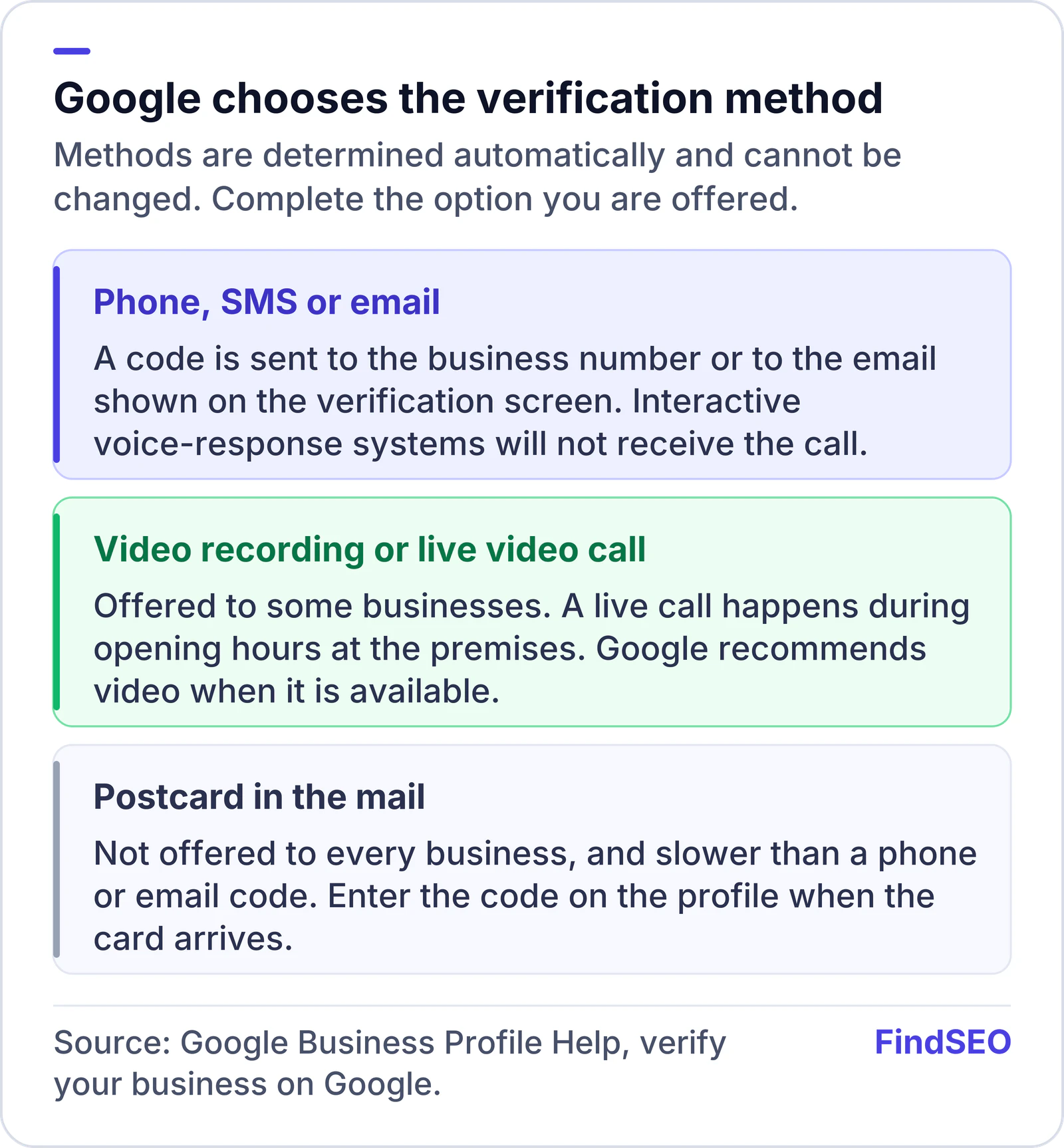
Google's verification guide says you need a Google account, and that verification methods are automatically determined by Google and cannot be changed. The options depend on the business type, public information, region or opening hours. In some cases you may need more than one method.

Common methods Google describes:

  • Phone or SMS. Google calls or texts a code to the business number. You must be able to answer that number or receive the text. Google says interactive voice-response systems will not get the code.
  • Email. Complete the steps in the message sent to the address shown on the verification screen.
  • Video recording, if you are eligible. Google recommends this option when it is offered.
  • Live video call, during the location's business hours, from the premises. Google says you should be ready to show outside signs, the premises or equipment, and proof you manage the business (for example access to staff-only areas). This is not available for every business.
  • Mail (postcard). A postcard is posted to the business address with a code. It is not offered to every business, and it takes longer than a phone or email code.

Enter the code on the profile when it arrives. You will get a confirmation when verification succeeds. Until then, some edits stay limited.

Google chooses the Business Profile verification method: a phone, SMS or email code, a video recording or live video call for some businesses, or a postcard in the mail, which is slower and not offered to everyone.
You cannot pick a different method. Complete the option Google offers.
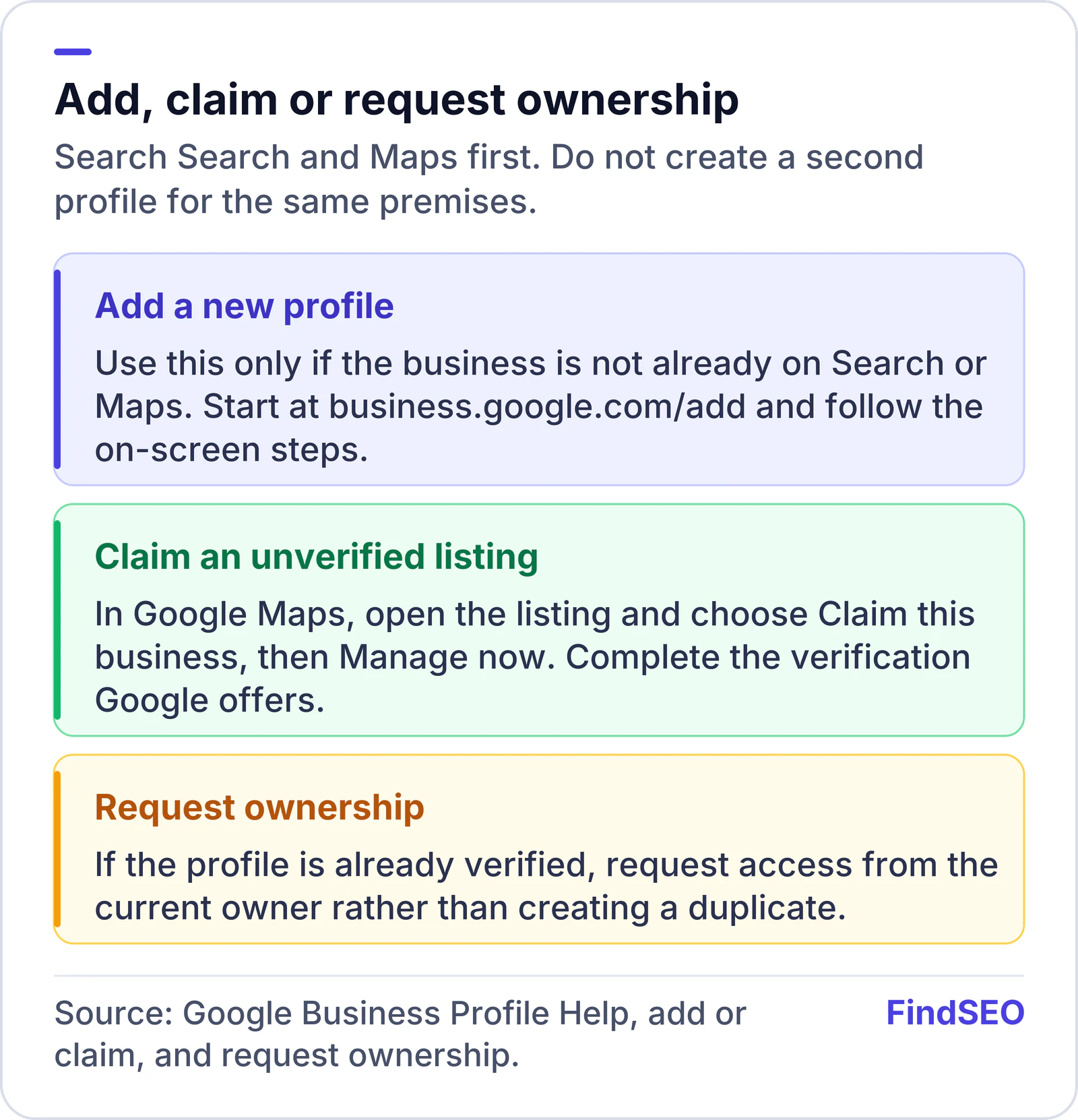
Three starting points for a Google Business Profile: add a new profile if the business is not on Search or Maps, claim an unverified listing from Google Maps, or request ownership if a verified profile already exists. Google chooses the verification method, which may be phone, SMS, email, video, a live call or a postcard.
Add, claim or request ownership. Do not create a second profile for the same premises.

What names and addresses does Google allow?

Google's representation guidelines say the profile should represent the business as it is known to customers. Use the real trading name, not a list of keywords or suburbs. Add a secondary category only when it genuinely describes the work. The address help says to use a complete physical street address, including unit or suite numbers where they apply, and that post office boxes, remote mailboxes and virtual offices are not eligible. Service-area businesses should hide an address they do not serve customers at, and list a service area instead.

Keep the same name, address and phone number on the website. If an agency will manage the profile day to day, add that agency as a manager and keep the business as an owner. If you later need to recover the profile, you will be glad the owner email belongs to the business.

What should you complete after verification?

A verified but thin profile still struggles in how Google ranks local results. Work through the details that customers use to choose you:

  • Hours, including holiday hours, and a phone number that is answered.
  • The website URL, preferably a page that matches this location.
  • Photos of the premises, the work and the team, not stock images of some other shop.
  • A primary category, plus extra categories only when they are genuinely accurate.
  • Messaging if you will actually reply.

Then ask happy customers for reviews in a way that follows the rules. Our guide to getting more Google reviews covers what is allowed. Keep the same name, address and phone number on your website and in local citations, and add LocalBusiness structured data on the site so the details agree.

If a profile is later suspended, our guide to Business Profile suspensions explains the usual causes and the reinstatement path.

A traditional butcher's shop window packed with hanging hams, sausages and handwritten price signs, photographed from the street in Madrid.
After verification, fill in hours, photos and the website so the profile matches the real premises. Photo: Joe Mabel, CC BY-SA 3.0, via Wikimedia Commons.

How do you check the profile is live?

Google's verification guide says you can find the profile by searching for the business name and city, or for "my business", while signed in to the Google account that manages it. After verification, search for the business in an incognito window as well, so you see what customers see, not only the manager view.

Check that the name, pin on the map, hours and phone number match the shopfront. If the map pin is in the wrong place, correct the address rather than inventing a more convenient point. If two listings appear, do not post the same photos and hours to both and hope Google sorts it out: follow Google's process for duplicates and ownership, and keep a single profile for that premises.

Not every activity is eligible for a profile. If Google rejects the listing, read the eligibility and ownership guidelines before you create another one.

A Google Business Profile setup checklist

  • You searched Search and Maps for an existing listing before creating a new one.
  • The profile uses the real business name, an accurate primary category and an address that meets Google's guidelines.
  • You completed the verification method Google offered, and you received confirmation.
  • Hours, phone, website and photos are complete and kept up to date.
  • The same name, address and phone number appear on the website and in citations.
  • Review requests follow Google's rules.
  • Service-area businesses hide a non-public address as described in Google's service-area guidance.

The bottom line

A Google Business Profile is how many customers first meet a local business in Search and Maps. Add or claim the real listing, finish the verification Google gives you, and keep the details honest. Pair it with consistent citations, reviews and LocalBusiness markup on the site. If you want help with the wider local presence, compare local SEO services, browse SEO agencies in Australia, or get matched with an agency.

FAQs

Can I choose how Google verifies my Business Profile?

No. Google says verification methods are automatically determined and cannot be changed. The options depend on your business type, public information, region or hours. Complete the method you are offered, and be ready to use more than one method if Google asks.

What if a Google Business Profile already exists for my business?

Do not create a second one. If the listing is unverified, claim it from Google Maps with Claim this business, then Manage now. If it is already verified, request ownership from the current profile owner.

Is a Google Business Profile free to set up?

Yes. Google's help page on adding or claiming a profile says you can add or claim your business at no charge.

How long does postcard verification take?

Google does not publish a fixed number of days, and postcard verification is not offered to every business. Phone, SMS, email or video is usually faster when those options appear. Enter the code on the profile as soon as the postcard arrives.

Should a service-area business show its address?

Not if you do not serve customers at that address. Follow Google's service-area guidance and our separate guide for service-area profiles, rather than publishing a private or ineligible address.

Sources

Ready for help with SEO?

Compare SEO-only agencies near you, with client reviews checked by a person, or tell us what you need and get matched.